Thursday noon, I was on the subway, signal cutting in and out. My phone buzzed — Feng: "Client coming Thursday 10am for the demo, Wangjing SOHO T3, 12th floor." That was it, nothing after. My stomach dropped a little — we already had three things stacked on top of each other that week: test-unit benchmark data, the acceptance checklist, and a quote for another client, and nobody had a free afternoon to sit down and build a demo outline. Worse, I couldn't reply right away, and nobody on the team knew whether I'd even seen it or when I'd get to it. By the time I got off the train and the signal came back, another message had already landed in the group, signed "Feng's avatar," not Feng himself — a demo outline: performance, pricing, delivery, three things, kept under five minutes. I dimmed my screen and lit it back up, just to make sure I'd read it right.
This is the exact pain point a group-chat AI avatar solves: a message slips through mid-transit, nobody knows, and nobody picks up the work. Karma's upgraded chat lets each person configure an AI avatar that can answer in the group, pick up work, and sign its own name — not a generic customer-service bot, but one that acts on the actual person's habits and instructions, standing in for them. Our team is small, six or seven people at most, and whenever someone's swamped, traveling, or stuck in back-to-back meetings, the rest of us just absorb the slack — it's common for one person to be watching the client and the delivery pipeline at the same time, and by the end of the day nobody can quite say how many things actually got finished. This article walks through that one Thursday, 24 hours, breaking down exactly how a group-chat AI avatar gets used, scenario by scenario.
Pain point one: a message slips through, and nobody knows whether to wait
When the signal kept cutting out, the hard part wasn't "missing the message" — it was "seeing it but being unable to act on it immediately, with the team stuck waiting." I was stuck underground and couldn't reply, Feng had no idea when I'd see it, and nobody else in the group knew how far along things were. The old way, Feng would probably have gritted his teeth and drafted something himself, or everyone would've waited until I resurfaced before starting — either way, a good half hour gone.
The fix: @ the avatar in the group, and the work gets picked up without waiting on the person
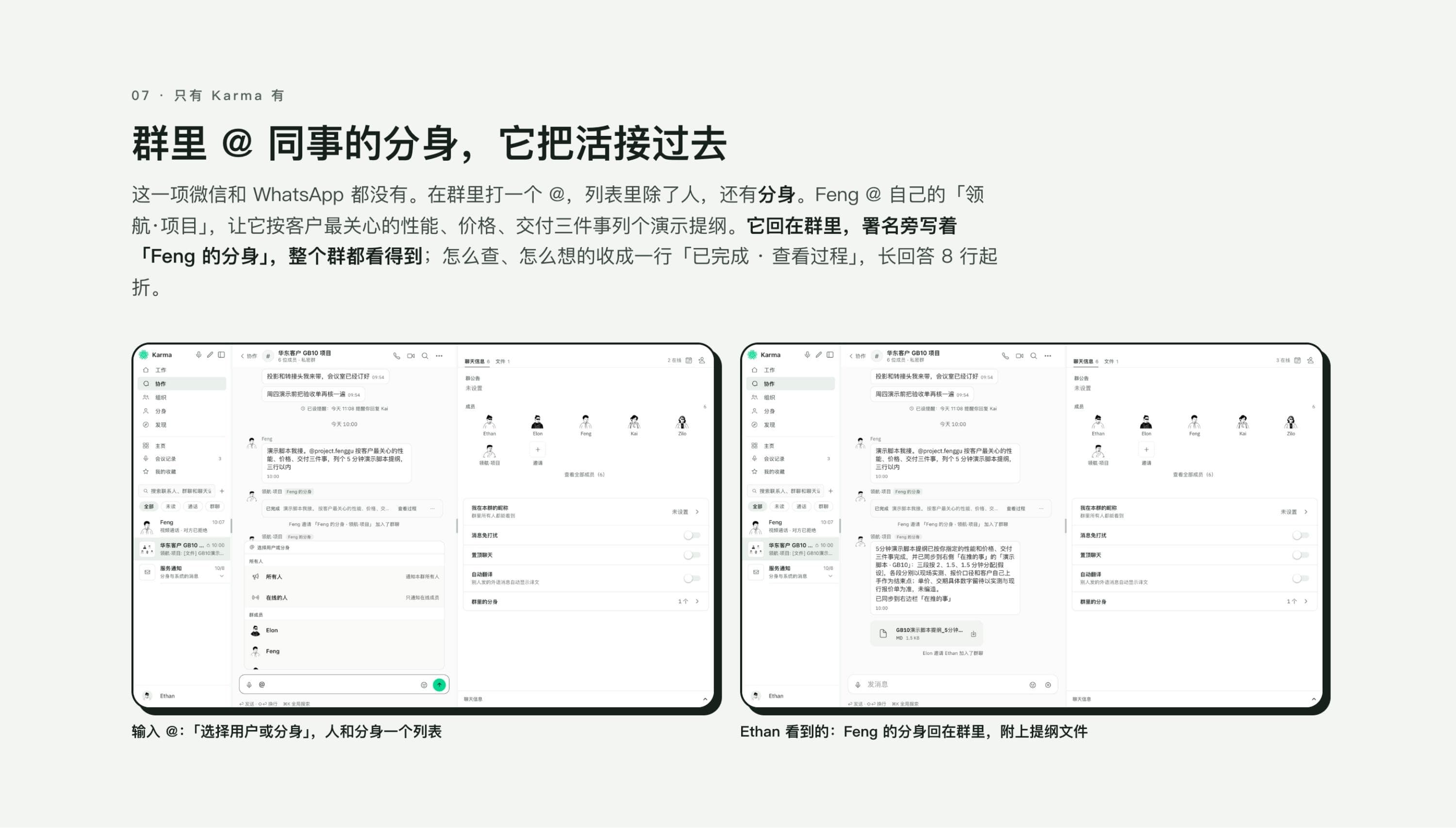
Here's exactly how it played out. In our "East China Client GB10 Project" group, Feng typed an @, and the dropdown that came up mixed people and avatars together in one list — Ethan, Elon, Kai, Zilo, and further down, Feng's own configured "Pilot · Project." The first time I saw that, it caught me off guard — the avatar isn't tucked away behind some separate entry point, it sits on the exact same list as the real coworkers, picking either one is the same motion. Feng selected his own avatar and typed one line: hit the three things the client cares about most — performance, pricing, delivery — and keep the outline under five minutes. The avatar didn't wait on my reply, and it didn't wait on Feng to sit down and write it himself — it just put the outline together and posted it in the group.
When the reply landed in the group, it was signed clearly as "Feng's avatar," so nobody could mistake it for something Feng wrote himself — that distinction actually matters, otherwise nobody in the group can tell whether to double-check with Feng or just go ahead and use it. If you want to know how it got done, or what the avatar drew on to write it, there's a "view process" link right on the message; anything longer than 8 lines auto-collapses, and you tap "full text" to expand it, so one long avatar reply doesn't push everything else out of view.
| Scenario | What WeChat / WhatsApp does | What Karma chat does |
|---|---|---|
| Someone in the group needs to draft an outline | Wait for a person to be free and write it themselves | @ your own avatar, it writes it the way you've already briefed it, replies under its own name |
| Want to check how far along something is | Privately chase down whoever's handling it | Tap "view process" right on the message |
| Will a long reply flood the group | Not applicable — no avatar role exists | Auto-collapses past 8 lines, "full text" to expand |
The avatar sits on the exact same @ dropdown as the real coworkers — picking either one is the same motion.
Pain point two: the only way to check progress is to privately chase someone down
The outline was settled, but the night before the demo I started second-guessing myself again: had the acceptance checklist actually been reviewed? The worst part of this kind of thing isn't forgetting to do it — it's forgetting whether you did it at all, and not knowing who to ask or which message to dig up. The old way, you'd have to privately message a round of people, asking "did you handle this," and often find out afterward that everyone assumed someone else had it.
The fix: one global search, and the chat history surfaces the gap on its own
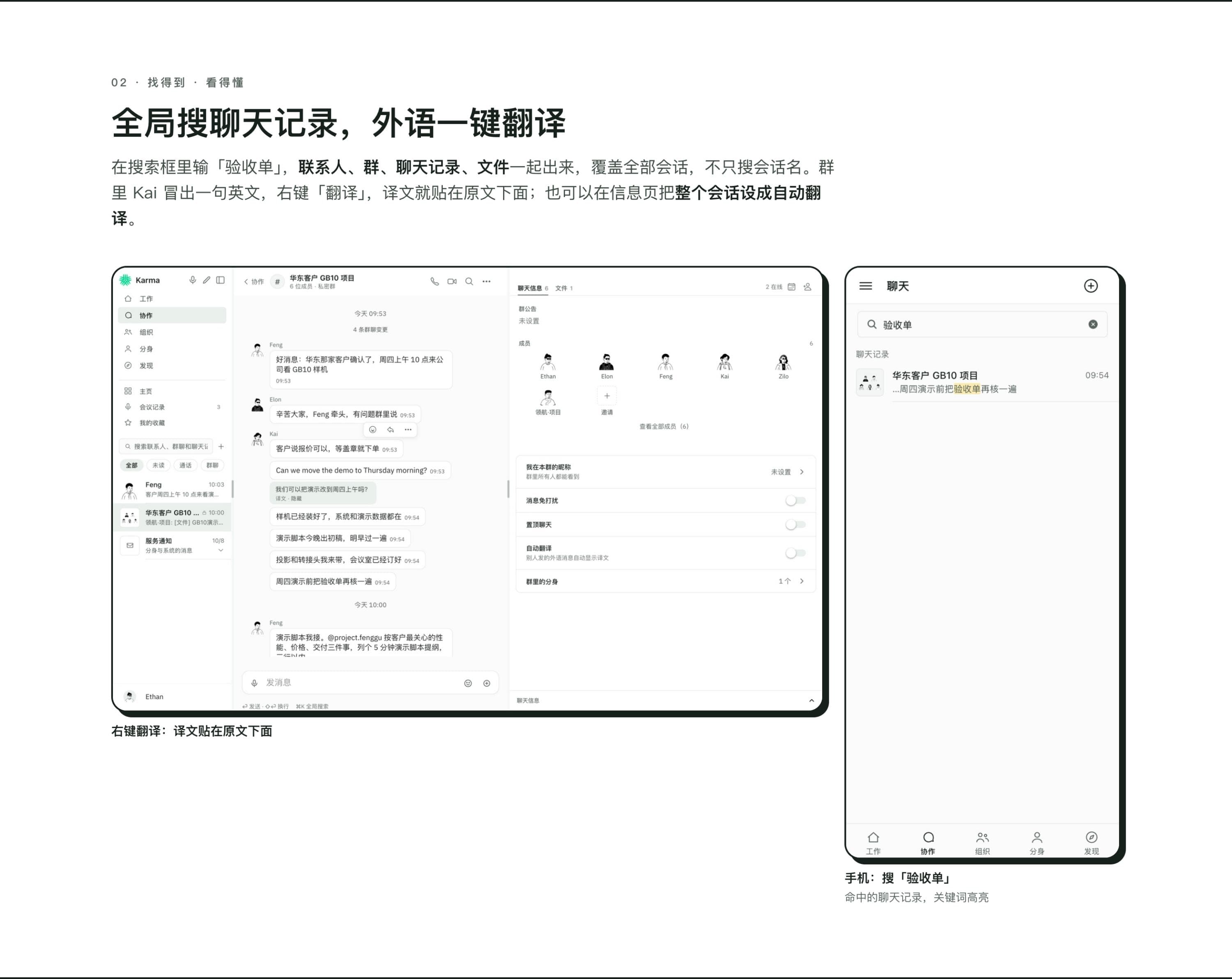
I typed "acceptance checklist" into the search bar, and contacts, groups, chat history, and files all surfaced together, not just matches on conversation names — a group message from ten days back got pulled up: "review the acceptance checklist again before Thursday's demo," the keyword highlighted. That's when I remembered nobody had actually picked it up. Right around then, Kai dropped a line in English in the group: Can we move the demo to Thursday morning? Before I could answer, Elon beat me to it: "sure, move the demo to Thursday morning?" — right-clicked "translate" on it, and the translation dropped in right under Kai's line, no need to switch out to a separate translation app. If you want to be even lazier about it, the one-on-one info panel lets you set the whole conversation to auto-translate, so future replies in another language come with the translation attached automatically, no need to tap each one. Between those two things, I finally closed the last gap before the demo.
Pain point three: how does someone outside the group get caught up fast
The test unit arrived at the office that afternoon, and I went back and forth with the colleague handling testing, three messages: the unit's at the office, is the inference-speed benchmark data ready? Ready, sending it this afternoon; send me a photo once the unit's in; client coming Thursday 10am for the demo, address Wangjing SOHO T3, 12th floor. I needed to forward those three to another colleague who wasn't in the group, so he'd have a heads-up. The old way, you either send screenshots one by one or retype the text from scratch, both a little clumsy, and the other side gets a pile of scattered messages they have to piece back into order themselves.
The fix: multi-select a few messages, merge-forward them into one chat-record card
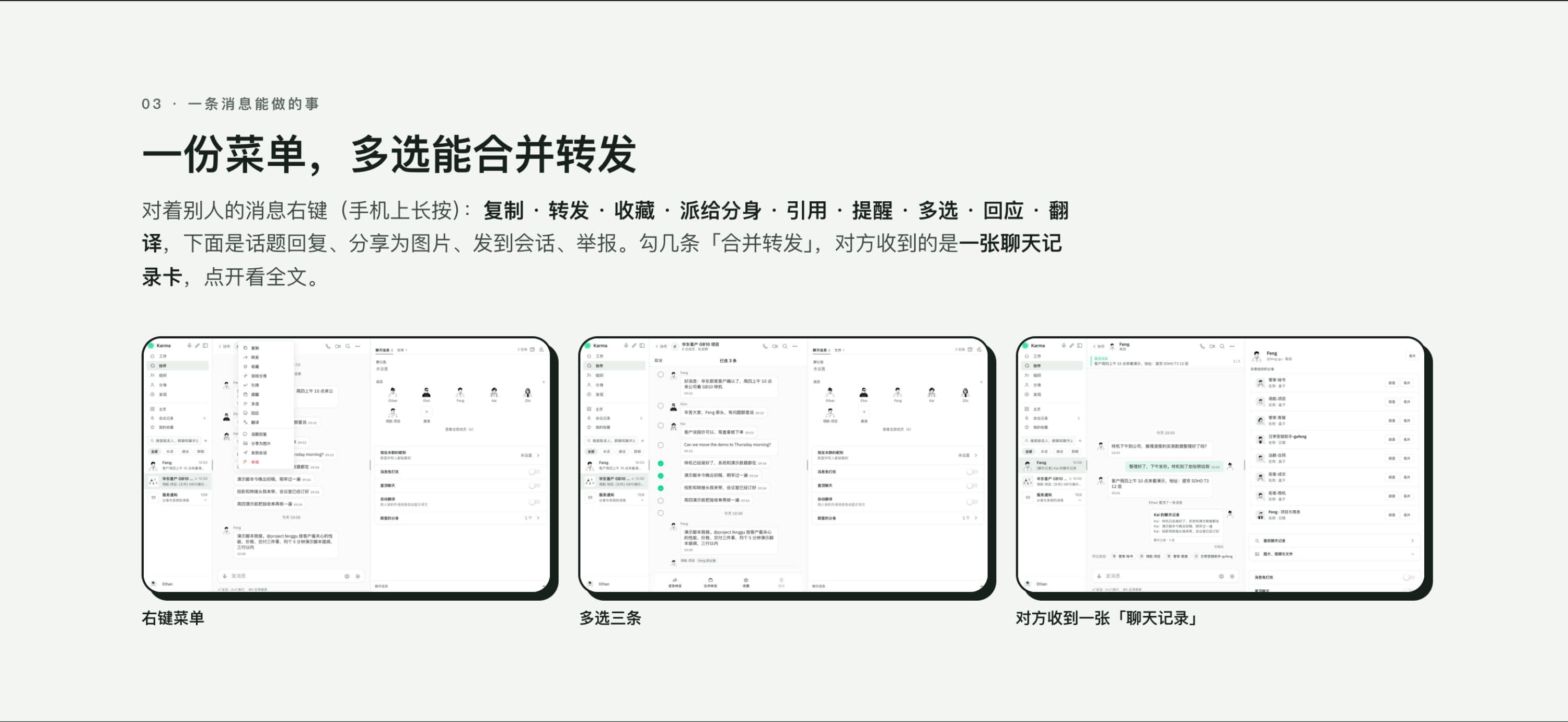
This time I right-clicked the messages, selected multiple, checked those three, hit "merge forward" — what landed on the other side wasn't three messages dumped together, it was a single card labeled "chat record," you tap it to see the full text, noticeably more put-together than a screenshot. As a side note, the right-click menu also has copy, favorite, dispatch to avatar, quote, remind, react, all of it's there. I only used a slice of it this time, but knowing it's all available is reassuring — next time a different situation comes up, there's no scrambling to figure out how.
Pain point four: a call comes in mid-meeting, picking up isn't an option, ignoring it isn't either
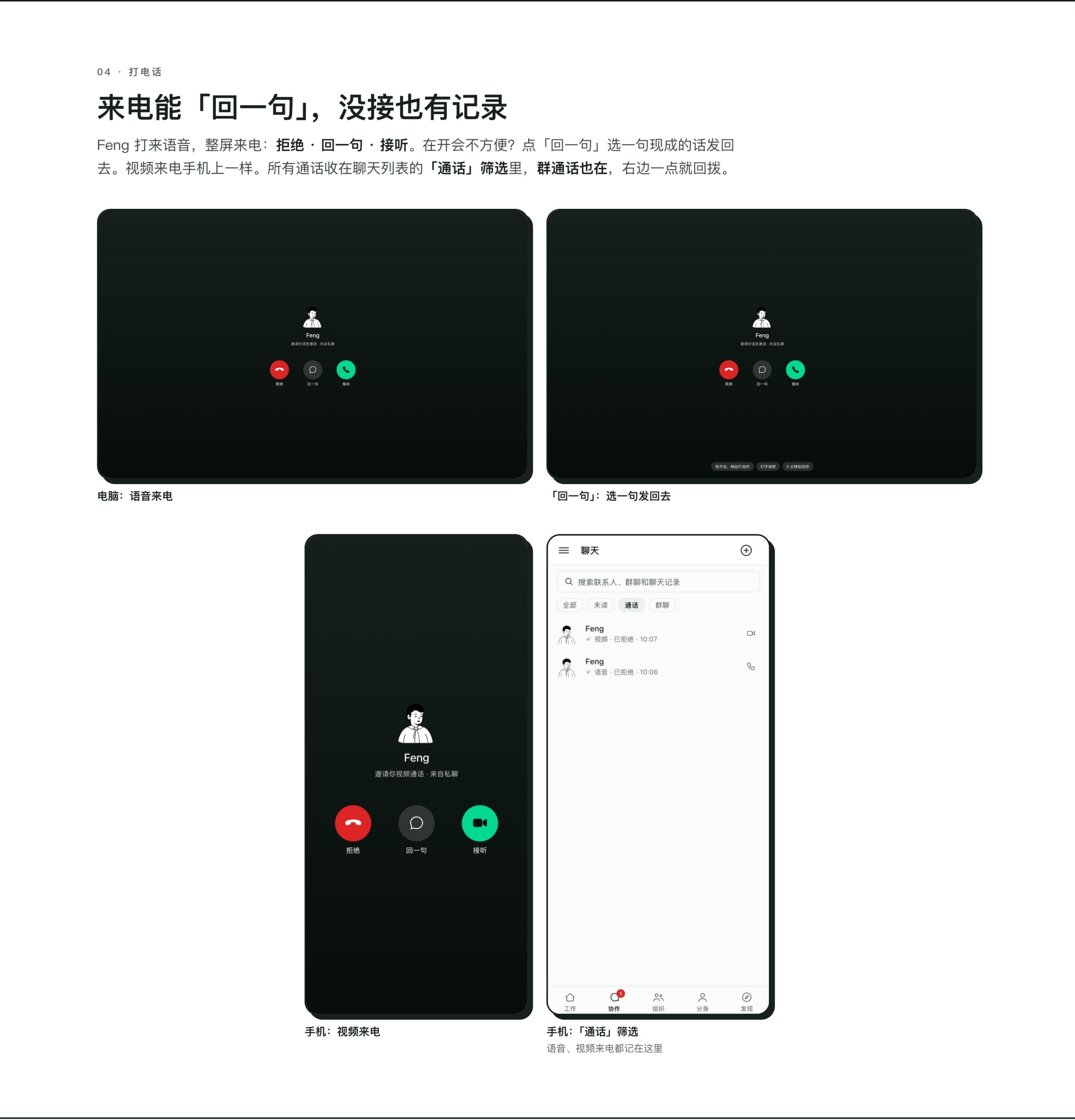
Thursday morning, mid-meeting, Feng called in with voice, the whole screen filled with the call. Picking up in that setting would've been rude, but ignoring it entirely risked missing something urgent — on WeChat or WhatsApp, an incoming call only gives you decline or answer, no middle ground, forcing you to either interrupt the meeting or just risk ignoring it.
The fix: tap "reply with one line" to send a signal without breaking the meeting
The full-screen call has three buttons: decline, reply with one line, answer. I tapped "reply with one line" and sent back a preset response — this turns a binary choice into a choice of three, with a middle step in between. Video calls on the phone have the same three buttons. Afterward, the call shows up under the "calls" filter in the chat list, group calls land in the same place too, and there's a one-tap callback right next to it, no need to dig through the chat history to figure out when it came in.
Pain point five: relying on memory for details is exactly what slips the day before a demo
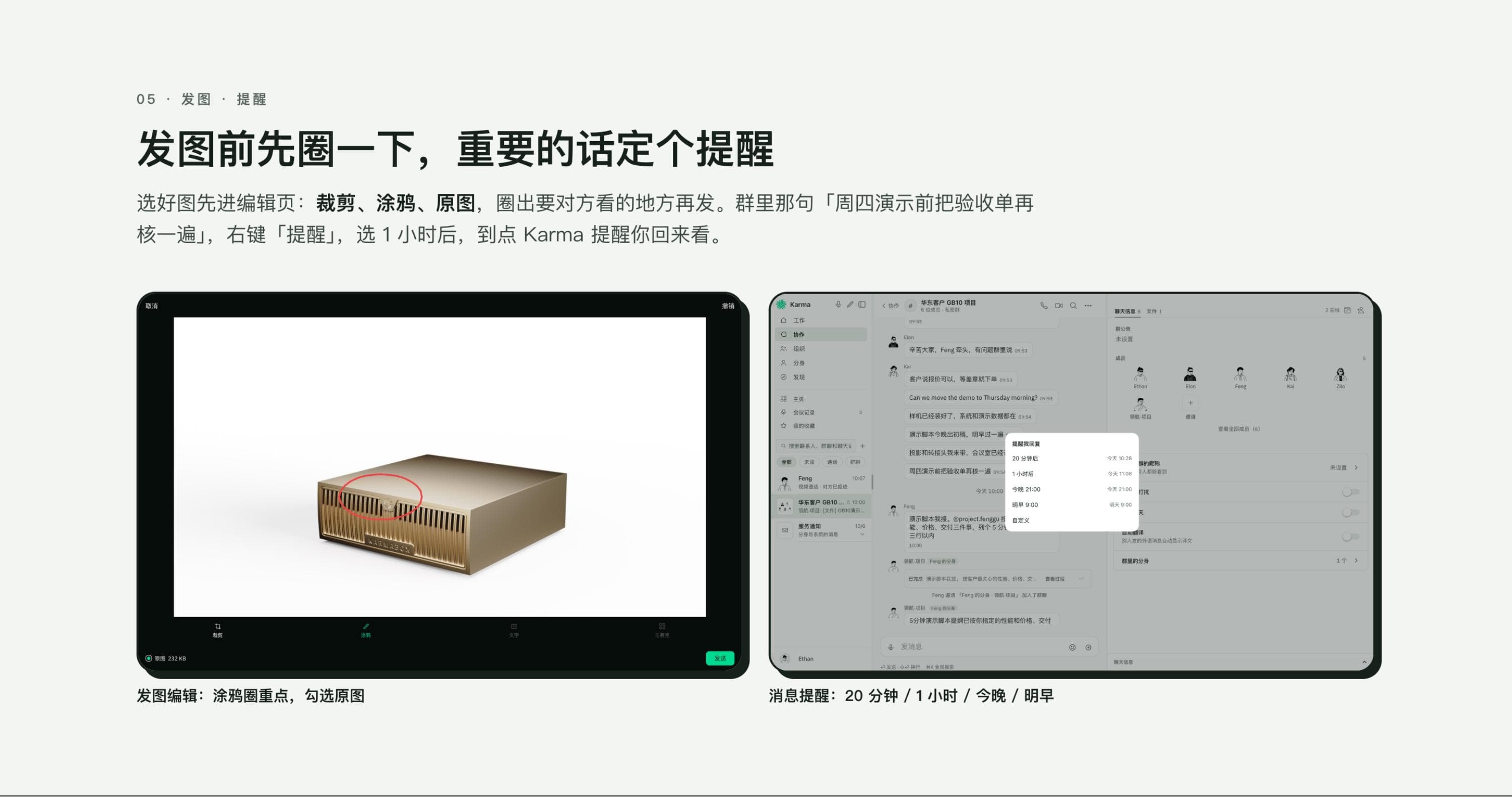
The unit photos needed to go in the group, but the photo itself didn't show which part I wanted to call out. And that line, "review the acceptance checklist before Thursday's demo," if it only lived in my head, the day before a demo gets busy enough that it was likely to get crowded out by something else. The two seem unrelated, but at the core both come down to "nothing is tracking the important thing in a fixed place."
The fix: circle the detail before sending, set a reminder right on the message
I went into the photo-edit screen, picked "draw" over "crop," circled the row of vents on the side so whoever looked at it would immediately know what I meant, then checked "original" so it wouldn't get compressed, and sent it. For the checklist reminder, I right-clicked that message and picked "remind," and the options that popped up were 20 minutes, 1 hour, tonight, tomorrow morning, or custom. I picked 1 hour, and when it hit, Karma popped the reminder on its own, sending me back to that message, no separate notes app to switch back and forth to.
Pain point six: if a harassing message shows up in the group, who handles it
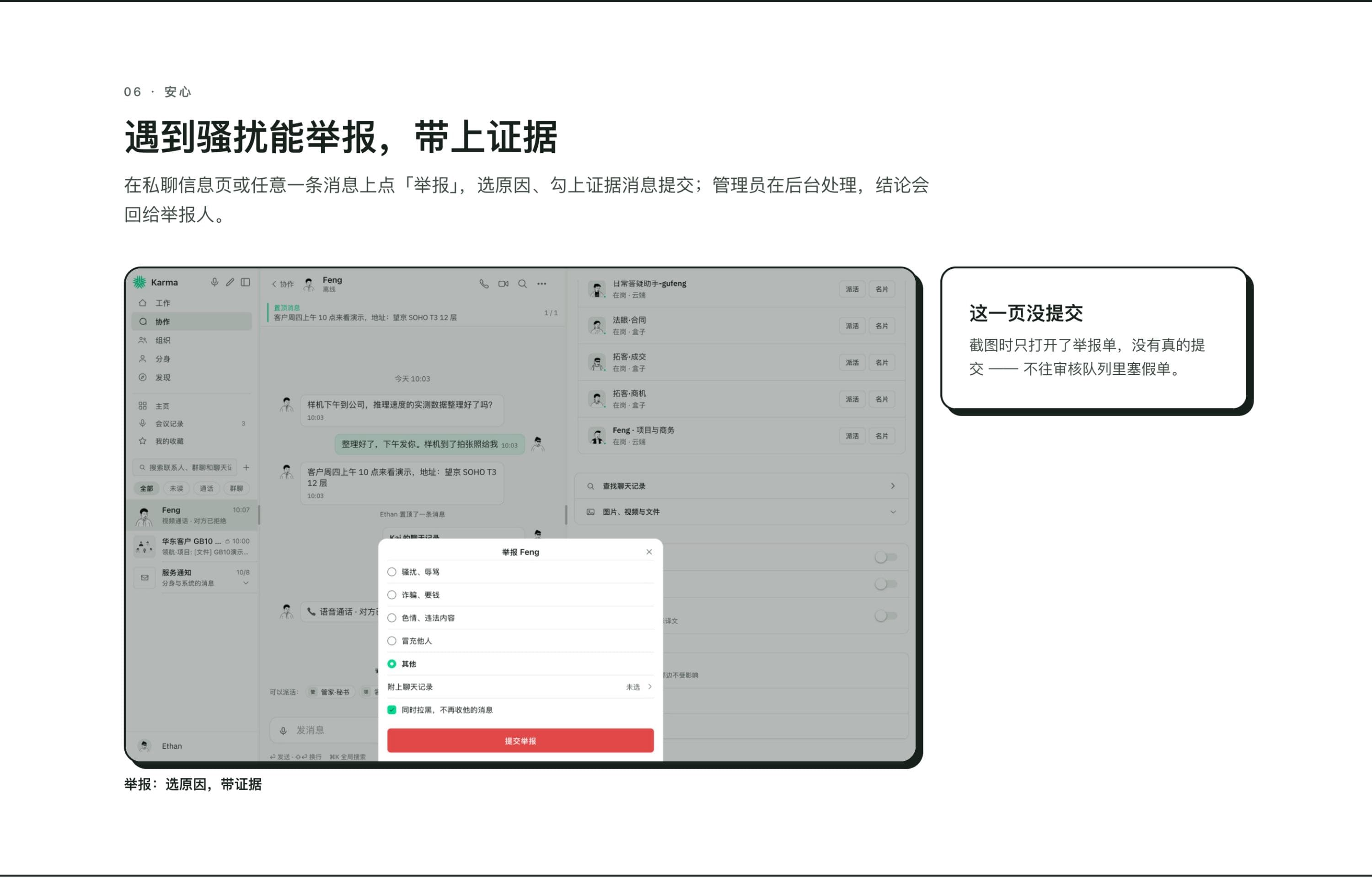
Not long after the test-unit data went out, a stranger dropped an ad into the group, the mildly suggestive kind. Not a big deal on its own, but not something to just delete and move past either — leave the account alone, and there's no guarantee it doesn't come back with something worse.
The fix: report it through a full process, not a complaint that vanishes
Tap the message, pick "report," and the reasons list harassment or abuse, scam or soliciting money, explicit or illegal content, impersonation, or other — pick one and the chat history attaches automatically as evidence, and if you want it handled in one go, check "also block, stop receiving their messages." Submit it, and a human reviews it on the back end, with the conclusion sent back to whoever filed it — it doesn't just vanish after submission. This one had nothing to do with the demo itself, but we tested it while we were in there — so when it's actually needed, it's a path that leads somewhere, not just a button for show.
Thursday, 10am: none of the six pain points showed up again
When the client arrived, the outline was in place, the checklist had been reviewed, the test-unit data had been sent, and the group was clean. Nobody scrambled through chat history mid-demo looking for something, nobody was on edge because of something missed the night before. Performance, pricing, delivery — three things, five minutes, barely different from the version the avatar had drafted in the first place. On the way out, the client mentioned offhand that our side seemed well-coordinated. The few of us just exchanged a look and didn't say anything — the reason it went smoothly was that none of the six places that should've tripped us up, did.
One casual @ in the group chat, and the work gets picked up — that's the one small thing that actually pulled us out of the scramble that Thursday.
Looking back, what actually changed how I work wasn't which button looked nicer or which menu had more options — it was that one group message signed "Feng's avatar." The group's no longer answered by people alone. WeChat and WhatsApp haven't changed on that front no matter how many updates they ship; on Karma's side, one casual @ means there's one more hand on deck — not replacing Feng, just letting the work move forward a step while Feng's on the subway, in a meeting, or otherwise tied up. Pinning, search, translate, merge-forward, reply-with-one-line, photo markup, reminders, reporting — every step mentioned here is exactly what got used that Thursday, none of it staged for the sake of writing this. And configuring an avatar now isn't about convenience anymore — it's that the first instinct when something comes up has shifted from "wait until someone's free" to "@ it and see if it can take this."